Crop what matters, name it properly, strip what should not ship
The three small jobs that turn a resized folder into files you can actually hand over: choosing the part of the frame worth keeping, giving everything a consistent name, and making sure the camera's record of where you stood does not go with it.
Small things, done once, for everything
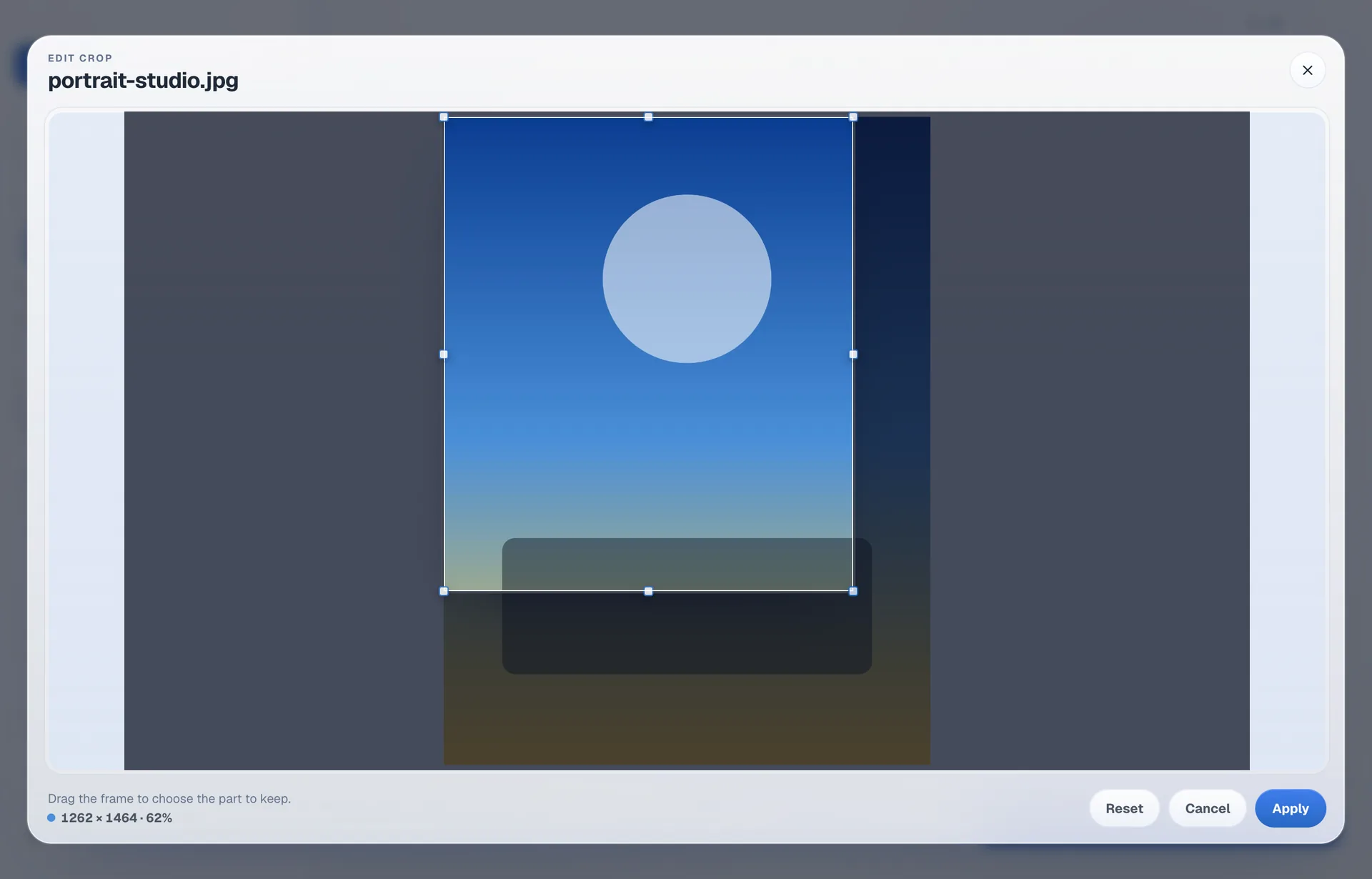
Crop
Draw a frame on any single image. It is applied before the resize, so the resize works on the region you kept.
Rename
Give the batch a filename pattern. {name} keeps the original, so {name}@2x turns hero.jpg into hero@2x.jpg.
Clean metadata
Strip EXIF, GPS and camera fields before the file is written. Two modes: keep everything, or clean it.
When to crop by hand
Most of the time you do not need to. If you are using Fill, the crop anchor already decides what survives — centre, the busiest region, or one of the four corners — and it applies to the whole batch at once.
Hand-cropping is for the image where that is not good enough: the product shot where the subject sits off to one side, the portrait that needs headroom the anchor will not give it. Open the editor on that one file, drag the frame, and the rest of the batch is unaffected.
The crop stays attached to the image. Reopen the editor later and the frame is where you left it.
Renaming a whole export
A filename pattern applies to every file in the run. The {name}
token is replaced by each file's original name, and everything else in the pattern is
literal text, so you can put a suffix or prefix around it consistently.
{name}@2x→hero.jpgbecomeshero@2x.jpgweb-{name}→hero.jpgbecomesweb-hero.jpg
Metadata is a decision, not a default
Photographs carry more than pixels: camera body, lens, settings, and often the exact coordinates where the shutter fired. That is useful in your own library and rarely something you want to publish.
Cleaning removes those fields on the way out. The originals are untouched unless you chose to rewrite them in place.
| Crop | Per image, drawn by hand, applied before the resize |
|---|---|
| Crop persistence | Stays attached to the image between visits to the editor |
| Batch crop anchors | Centre, attention, and the four corners — set in the size card |
| Rename token | {name}, replaced by the original filename |
| Metadata | Keep, or clean EXIF, GPS and camera fields |
Crop and rename questions
Is the crop applied before or after the resize?
Before. You are choosing which part of the source to keep, and the resize then works on that region rather than the whole frame.
Does the crop survive if I close the editor?
Yes. A crop stays attached to that image, so reopening the editor shows the frame where you left it rather than starting over.
What can I put in a filename pattern?
Any text you like, plus the {name} token, which is replaced by the original filename. So {name}@2x turns hero.jpg into hero@2x.jpg across the whole batch.
Can I remove location data from photos?
Yes. Metadata has two modes — keep or clean. Cleaning strips EXIF, GPS and camera fields before the file is written.
Keep reading
Hand over files, not homework
Five days free, then $9.99 once. macOS 13 or newer.