Convert HEIC to JPG on your Mac, a folder at a time
An iPhone writes HEIC. Most of the places you need to send a photo do not accept it. Frostbatch opens HEIC like any other format, so you can convert a whole camera roll to JPG — and resize and rename it on the way out — without a separate conversion step.
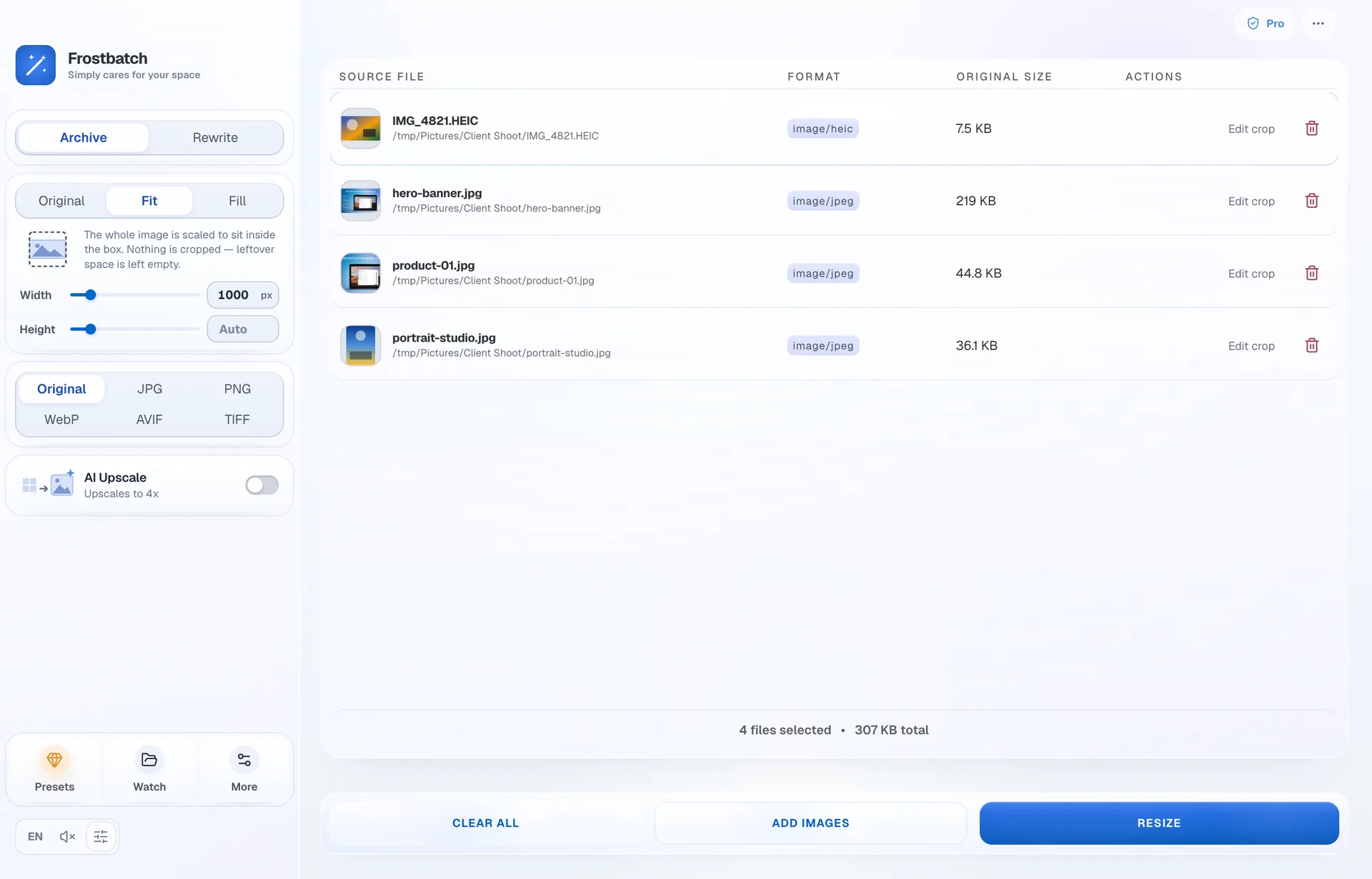
Three steps, one pass
Drop the photos in
Drag a folder straight from Finder, or from Photos after an export. HEIC files are accepted by the same drop target as everything else.
Pick JPG as the output
Choose JPG in the format card and set a quality. PNG, WebP, AVIF and TIFF are all available if you would rather have one of those.
Run it once
Every file is converted in the same run. Take a zip of the results, or write them over the originals in place.
What happens to the file
HEIC is a container: Apple writes HEVC-encoded image data inside it. Frostbatch decodes that on the Mac and hands the pixels to the same pipeline every other format goes through, which is why a HEIC file can be cropped, resized and upscaled exactly like a JPEG.
There is one asymmetry worth knowing about. Frostbatch reads HEIC but does not write it, because no HEIC encoder is available to write back to. In practice that only shows up in one place: if you set the output format to Original — which keeps each file in its own format — HEIC files come out as JPEG rather than HEIC. Everything else round-trips as itself.
Doing more than converting
Conversion is rarely the only thing that needs doing. Because it is the same batch, you can pair it with:
- A resize — 4000px camera output down to something a website will accept. See batch resizing.
- A preset — pick the target and let it set the numbers. See presets and bundles.
- A rename — give the whole export a consistent filename pattern.
- Metadata cleaning — strip EXIF, GPS and camera fields before the photo goes anywhere.
Formats, in and out
| Reads | JPG, PNG, WebP, AVIF, TIFF, HEIC |
|---|---|
| Writes | JPG, PNG, WebP, AVIF, TIFF |
| HEIC output | Not available — HEIC input is written as JPEG when the output format is Original |
| Where it runs | On your Mac. No upload, no account, no server |
| Requires | macOS 13 or newer, Apple silicon or Intel |
HEIC questions
Can Frostbatch convert HEIC to JPG in bulk?
Yes. Drop in as many HEIC files as you like, pick JPG as the output format and run the batch once. Every file is converted in the same pass, and you can resize and rename them at the same time.
Why does HEIC come out as JPEG when I choose Original format?
Original keeps each file in its own format. HEIC is the exception, because there is no HEIC encoder available to write back to, so those files are written as JPEG instead. Every other format round-trips as itself.
Does converting HEIC upload my photos anywhere?
No. Decoding and conversion happen on your Mac. Frostbatch has no server, no account and no telemetry, so the photos never leave the machine.
Will the conversion strip my location data?
Only if you ask it to. Metadata has two modes: keep it, or clean it. Cleaning removes EXIF, GPS and camera fields before the file is written.
Keep reading
Stop converting photos one at a time
Five days free, then $9.99 once. macOS 13 or newer.