A folder that resizes what you drop into it
The fastest batch is the one you never start. Point Frostbatch at a folder, and anything that lands in it is processed on arrival — no window to open, no button to press.
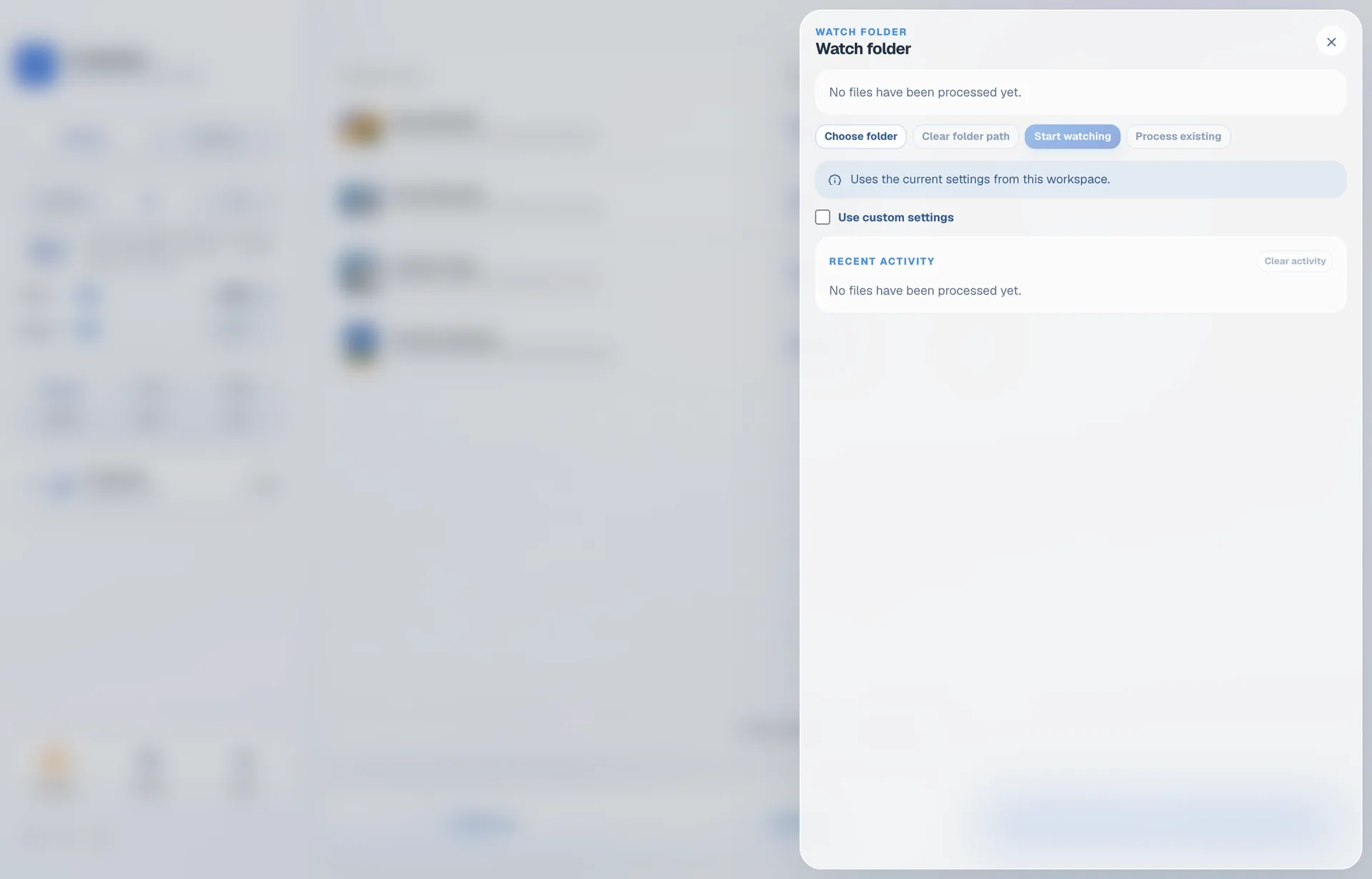
Three decisions, then leave it alone
Choose the folder
Anywhere on your Mac. A drop box on the Desktop, a shared folder, wherever the images already arrive.
Decide whose settings
Use whatever the main window is set to, or give this folder its own set that stays put while you change the app for other work.
Switch it on
Watching is its own switch. Turn it off and the folder and its settings are still remembered for next time.
Why per-folder settings matter
A watch folder is usually set up for one purpose — thumbnails for a shop, web-sized copies of everything a camera produces, icons at a fixed square. That purpose does not change just because you opened the app this afternoon to convert something unrelated.
Giving the folder its own settings keeps the two apart. The main window stays a scratchpad for whatever is in front of you, and the folder keeps doing the one job you set it up for.
What it can do on arrival
A watched folder runs the same pipeline as a manual batch, so everything available there applies here too:
- Resize with Fit, Fill or Original.
- Convert between JPG, PNG, WebP, AVIF and TIFF — including HEIC coming in.
- Apply a preset so the folder targets a known destination.
- Strip EXIF, GPS and camera metadata before anything is written.
- Upscale first, where the sources are small.
It is still all local
Watching a folder does not change where the work happens. There is no sync, no upload and no account — the app is watching a directory on your own disk and running the same on-device pipeline against what shows up.
| Trigger | A file arriving in the watched folder |
|---|---|
| Settings | The app's current settings, or a set saved for that folder |
| Switchable | Watching toggles independently of the folder and its settings |
| Pipeline | The same resize, convert, upscale and metadata steps as a manual batch |
Watch folder questions
Does a watch folder use my current settings?
By default, yes. You can also give the folder its own settings, which stay attached to it and do not change when you adjust the main window for something else.
What happens to a file dropped into a watch folder?
It is picked up on arrival and processed with the settings that apply to that folder, without you opening the app or pressing anything.
Can I turn a watch folder off without forgetting the setup?
Yes. Watching is a switch of its own, separate from the folder you chose and the settings saved for it, so you can stop and restart without configuring it again.
Keep reading
Set it up once. Forget it.
Watch folders are included in the five-day trial. Then $9.99 once.